
Whether you’re new to this project management tool or want a quick refresher, this guide is for you! This article will show you how to:
- set your preferences for emails and notifications
- create a regular routine for staying updated
- edit current tasks and add new ones
1. Update Your Profile & Settings
This sounds easy until you’ve used Asana for two days and already have 3,000 emails in your inbox. Save yourself the headache and adjust some settings.
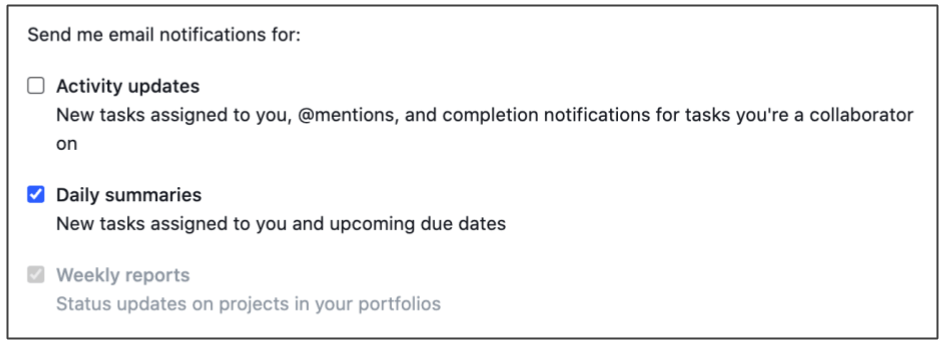
- Go to Profile > My Profile Settings > Notifications
- Choose which email notifications you want. If you do not want a lot of emails, uncheck the Activity Updates option!
2. Check Your Tasks
If you disabled Activity Update Emails, it is important to check your Tasks list often. Convert this into your To-Do list and have everything in one place.*
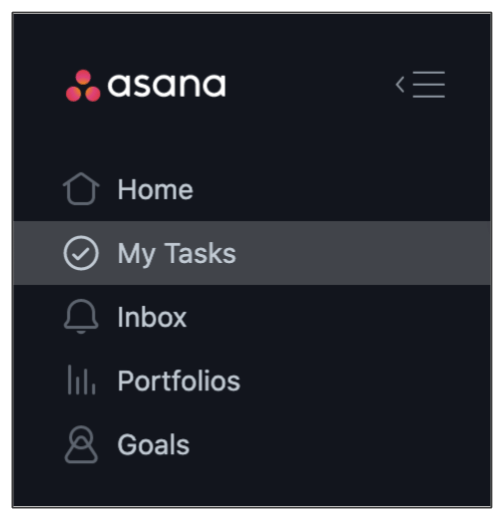
- Click ‘My Tasks’ on the left sidebar.
- If your tasks have dates assigned, you will see the tasks organized into Today, Upcoming, and Later.
- You can drag and drop these manually if you want to set your own to-do list for Today.
*True story, I used to have separate to-do lists in Google Drive, Email, Evernote, and my notebook. As aptly said by Ariana Grande, “thank u, next.”
3. Check Your Inbox
You probably saw this coming. Check the tasks, check the inbox. It will become part of the natural flow, I promise.
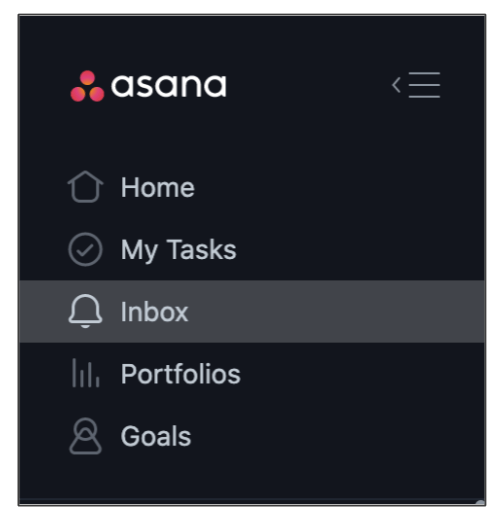
- Click ‘Inbox’ on the left sidebar. The yellow dot indicates a new message.
- Scroll through the list of your messages. There are status reports, updates to tasks (even if you are a collaborator), and continued discussions.
- You can “like” an update if you want your teammate to know you’ve seen it.*
*It’s beginning to look a lot like Facebook…
4. Favorite Your Projects
Find your projects easier by adding them to a custom list in the left sidebar.*
- Search for the project with the search bar (top right). Select the project.
- Click the star icon next to the project name.

*And make your projects happy. They don’t all get to be your favorite.
5. Update Current Tasks
- You can update your tasks from the My Tasks list or from inside a project.*
- Click on the task to see more information (right side)
- Depending on your team’s workflow, you can set a status, adjust the due date, and more.
- Click on the check mark icon to mark it complete. This will make it disappear from your Task list.
- Send notes to your teammates in the conversation section at the bottom. You can @ them to send notifications.**
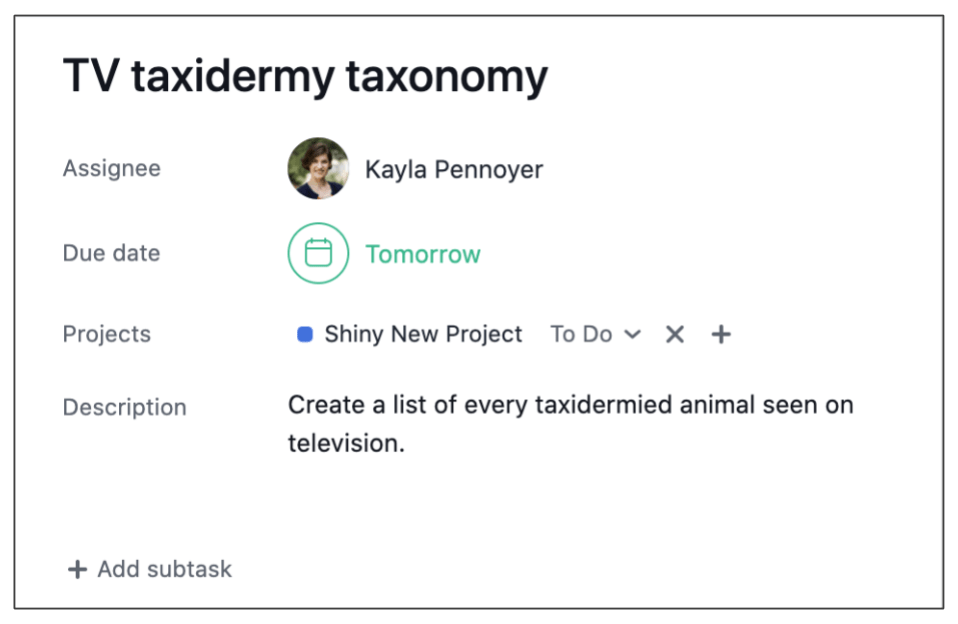
*No, the above image is not a real task. Sorry to disappoint.
**See? Like Facebook!
6. Add a New Task
- From inside a project, click on the + icon to add a new task to a project section.
- Write a Task Name. Make this as short but descriptive as possible.*
- Add yourself (or a team member) as the Assignee.
- Set the due date, hours, and status info.
- Write a description. Add all the details you need here!
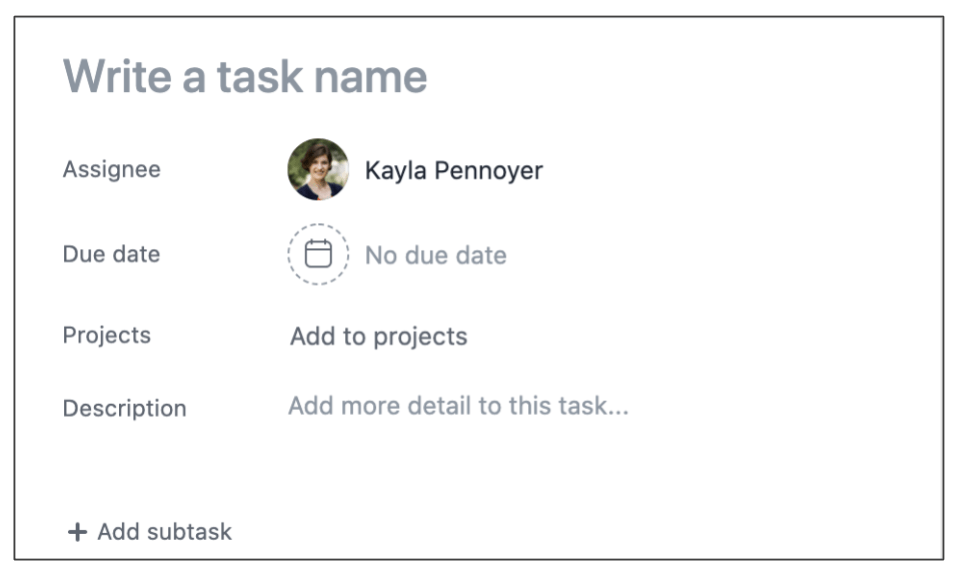
*These should be short and sweet, so the assigned person can quickly sort through their tasks and prioritize as needed.
I hope you have found these tips for using Asana helpful. Have more basic tips to share? Leave a comment below!
 KAYLA PENNOYER